Claude Desktop & Web Setup
Connect Tempreon to Claude (web, desktop, or mobile) in under 2 minutes.
Ready to connect? Your Bridges page walks you through it step by step.
Open your Bridges pageOverview
Claude by Anthropic supports the Model Context Protocol (MCP) through its Connectors feature. Connecting Tempreon gives Claude access to your Core Imprint, Knowledge Vault, and full intelligence layer — across claude.ai, the desktop app, and mobile.
There are two ways to connect. Tempreon is listed in Anthropic's Claude connectors directory, so you can find it and click Connect without copying a URL anywhere. Adding it by URL still works exactly as it always has, and is documented below.
Fastest path: the Claude connectors directory
- Open the connectors directory in Claude and search for Tempreon — or go straight to claude.ai/directory/tempreon
- Click Connect
- A browser window opens with the Tempreon authorization page — log in if prompted, review the permissions, and click Approve
That's it. No URL to copy, nothing to paste.
Use Claude Code too? Sign in to Claude Code with this same claude.ai account and Tempreon is already there. Run /mcp to see it. If you sign in to Claude Code with an API key or a cloud provider instead, follow the Claude Code setup guide.
One thing you'll see once: Claude shows a reminder that the connector hasn't been reviewed in depth. That's expected, not an error. Tempreon is listed as a community connector, which means it passed Anthropic's automated checks — it isn't the verified badge, and we don't claim it is. Everything the connector can reach is scoped to your own account.
Prefer to paste the URL, or connecting a client other than Claude? Continue below.
Prerequisites
- A Claude account (free or paid at claude.ai)
- A Tempreon account with at least one available Bridge slot
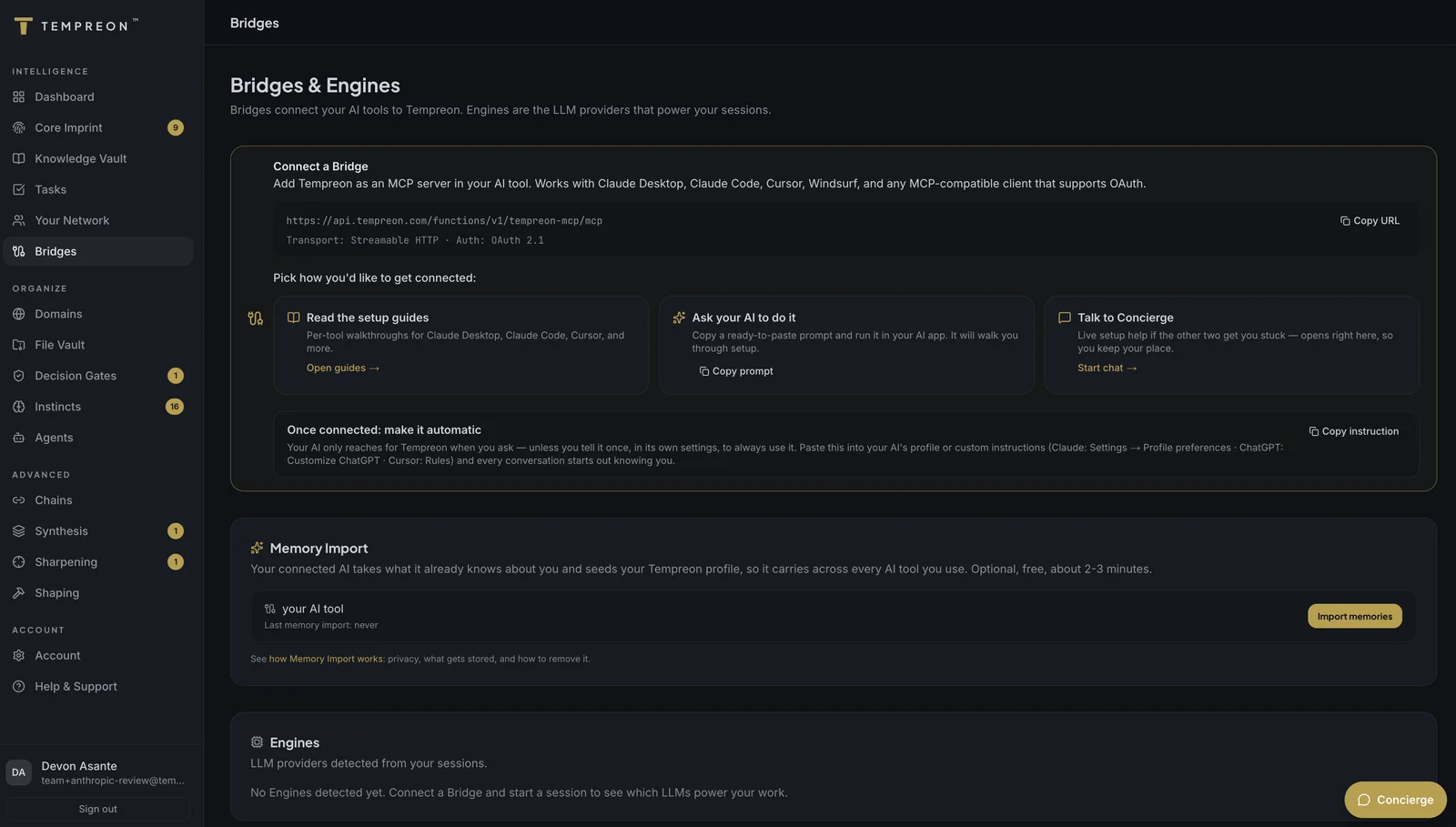
- Your Tempreon MCP server URL (found in your Bridges dashboard)
Adding Tempreon by URL
This is the original path, and it still works. If you already connected Tempreon this way, nothing changes and there is nothing to redo — the directory is an additional route in, not a replacement.
1. Get Your MCP Server URL
Log into Tempreon and navigate to the Bridges section of your dashboard. Copy your MCP server URL — you'll need it in the next step.
2. Open Claude Settings
You have two ways to get to the connector settings:
Option A — Customize (current):
- Go to claude.ai/customize/connectors (or click Customize in the sidebar, then Connectors)
- Click the + icon next to "Connectors" at the top
- Select Add custom connector
Option B — Settings (older builds):
- Go to claude.ai and log in
- Click your name in the bottom-left corner
- Click Settings, then Connectors
- On current builds this panel only says connectors have moved and links you to Customize — the direct link claude.ai/settings/connectors redirects the same way. Follow it and continue from Option A step 2.
3. Add Tempreon
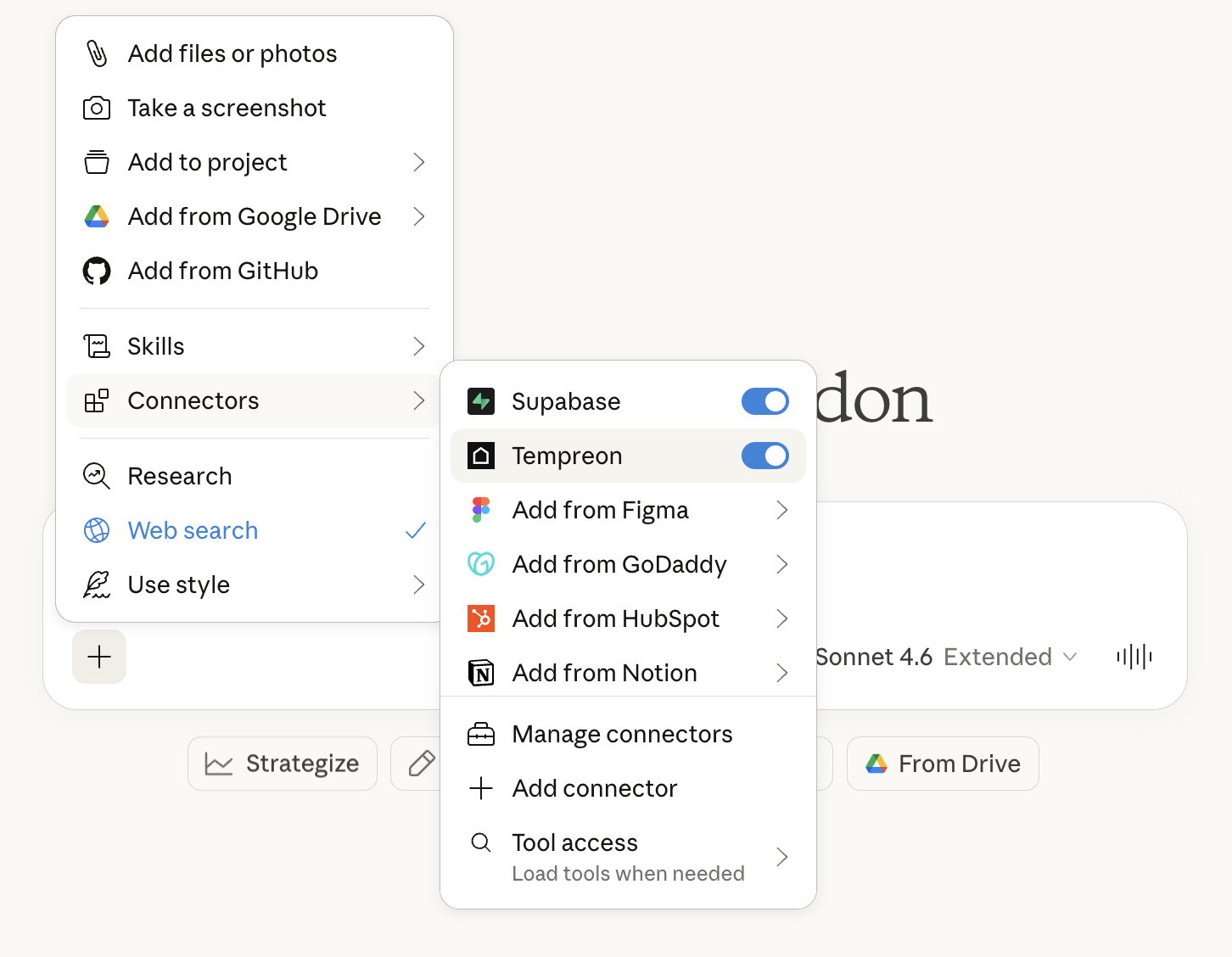
In the "Add custom connector" dialog:
- Name — Enter
Tempreon(or whatever you'd like to call it) - Remote MCP server URL — Paste the URL from your Bridges dashboard
- Click Add
4. Authorize the Connection
After adding the connector:
- Click Connect next to Tempreon in your connectors list
- A browser window opens with the Tempreon authorization page
- Log in to your Tempreon account if prompted
- Review the permissions and click Approve
- You'll be redirected back to Claude — the connection is now active
5. Enable in Your Chats
Once connected, you need to enable Tempreon in your conversations:
- Open a new chat (or Cowork, Code, etc.)
- Click the + button in the chat input area
- Go to Connectors
- Toggle Tempreon on
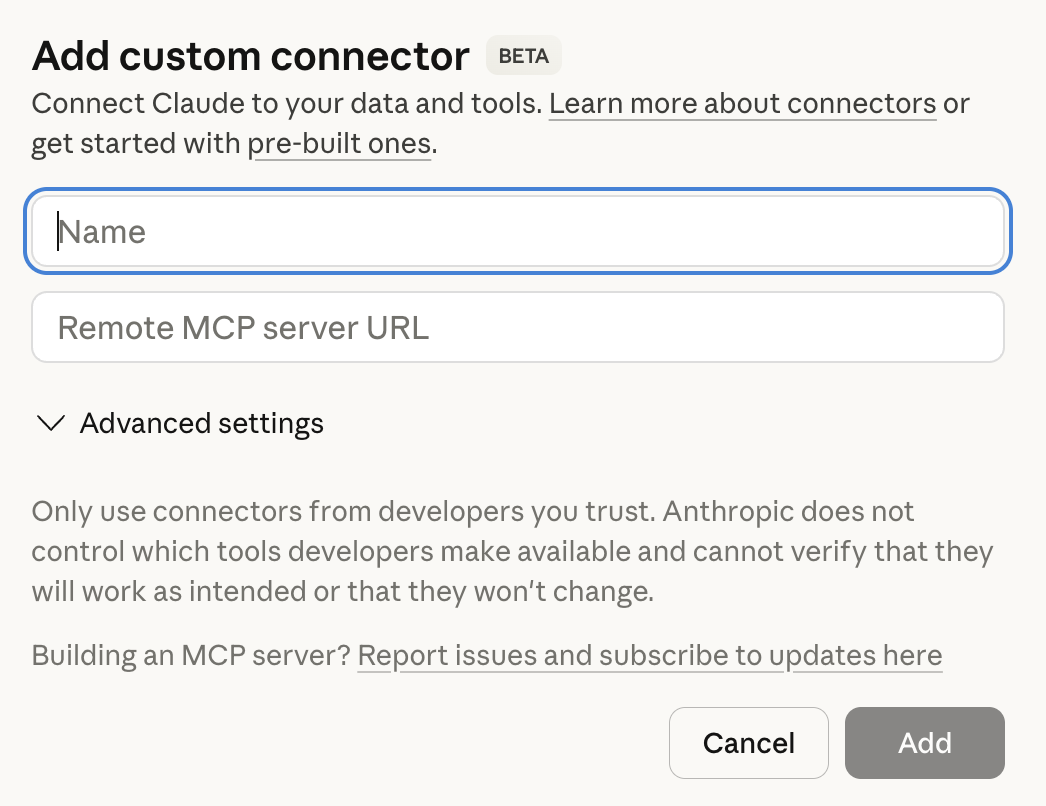
Tempreon is now active in that conversation. Your AI has access to your Core Imprint, Knowledge Vault, and all connected intelligence.
6. Verify It's Working
Try saying:
- "What do you know about me from Tempreon?"
- "Search my knowledge base"
- "What Tempreon tools do you have access to?"
If Claude responds with your Core Imprint information or lists Tempreon tools, the Bridge is working.
Using Tempreon Across Claude Features
Tempreon works across all Claude modes:
- Chat — Regular conversations with your intelligence loaded
- Cowork — Collaborative work sessions with persistent context
- Code — Development with your architecture decisions and coding patterns
Enable the Tempreon connector in each mode where you want your intelligence available.
Claude Code in your terminal counts too. Sign in to it with the same claude.ai account and your Tempreon connector comes along, so there's nothing to add. Run /mcp to confirm. With an API key or cloud-provider sign-in, set it up with the Claude Code guide.
After Setup
- Your sessions appear in the Bridges section of your Tempreon dashboard
- The connector stays saved — you don't need to re-add it
- Toggle it on/off per conversation as needed
- Knowledge stored in one conversation is available in the next
Common Issues
| Problem | Solution |
|---|---|
| "Add custom connector" not visible | Go to claude.ai/customize/connectors and click the + next to "Connectors" at the top — the older Settings → Connectors page only redirects there |
| Authorization page doesn't open | Make sure your browser allows pop-ups from Claude |
| Tempreon not showing in chat | Click + in chat > Connectors > toggle Tempreon on |
| "Connection failed" | Verify the MCP server URL matches your Bridges dashboard exactly |
| Claude doesn't know my context | Start a new conversation with the connector enabled |
For more help, see Troubleshooting Connections.
Frequently asked questions
- Do I still need to paste a URL to connect Tempreon to Claude?
- No. Tempreon is listed in Anthropic's Claude connectors directory, so you can search for it there and click Connect without copying anything. Pasting the MCP server URL as a custom connector still works and is documented on this page — it is the route for clients other than Claude, and for anyone who prefers it. If you already connected by URL, nothing changes and there is nothing to redo.
- Claude says this connector has not been reviewed in depth. Is something wrong?
- No, that notice is expected. Tempreon is listed as a community connector, which means it passed Anthropic's automated checks rather than an in-depth human review — it is not the verified badge and we do not claim it is. You see the reminder once. Everything the connector can reach is scoped to your own Tempreon account.
- I don't see "Add custom connector" in Claude's settings. Where is it?
- Go to claude.ai/customize/connectors and click the + next to "Connectors" — Customize is where Claude keeps custom connectors now. The older Settings → Connectors page still exists but only redirects you there. Custom connectors are available on every Claude plan, including Free, though Free accounts are limited to one custom connector at a time. On Team and Enterprise, an Owner adds the connector for the organization first.
- I added Tempreon but Claude isn't using it in my chat. What's missing?
- Adding the connector saves it to your account, but you still enable it per conversation. In a chat, click the + button in the input area, go to Connectors, and toggle Tempreon on. Do this in each mode where you want it — Chat, Cowork, and Code each have their own toggle.
- Does one connection cover Claude on the web, desktop, and mobile?
- Yes. Once you add Tempreon as a connector it appears across claude.ai, the desktop app, and the Claude mobile app automatically — you don't re-add it per device. You still toggle it on per conversation. Claude Code picks it up too when you sign in to Claude Code with your claude.ai account. If you sign in with an API key or a cloud provider, add it there with claude mcp add.