ChatGPT Setup
Connect Tempreon to ChatGPT for persistent intelligence across your conversations.
Ready to connect? Your Bridges page walks you through it step by step.
Open your Bridges pageOverview
ChatGPT supports the Model Context Protocol (MCP) through its Developer Mode feature. Once enabled, you can connect Tempreon as a custom app — giving ChatGPT access to your Core Imprint, Knowledge Vault, and full intelligence layer.
Prerequisites
- A paid ChatGPT plan — as of August 2026, custom MCP apps are available on Plus, Pro, Business, Enterprise, and Edu (not Free). OpenAI documents full MCP (tools that can save and update) for Business, Enterprise, and Edu workspaces, and describes Pro as connecting MCP servers with read and fetch permissions in developer mode. That help article says full MCP is currently for Business, Enterprise, and Edu, while OpenAI's developer docs list Plus and Pro as eligible for full read and write — so on Plus and Pro, expect lookups to work and treat saves as something to try rather than count on. Custom apps are web only — they don't run in the ChatGPT mobile apps.
- A Tempreon account with at least one available Bridge slot
- Your Tempreon MCP server URL (found in your Bridges dashboard)
Step-by-Step Setup
1. Enable Developer Mode
Developer Mode is required before you can connect custom MCP apps. It's a one-time toggle:
- Log in to ChatGPT on the web
- Click your profile name/icon in the lower-left corner
- Click Settings
- Go to Apps (older versions label this "Apps & Connectors" or "Connectors" — OpenAI renamed connectors to apps in December 2025, and migrated the app directory to the Plugin directory on July 9, 2026, so current builds may show Plugins)
- Click Advanced Settings
- Toggle Developer Mode on
Don't see it there? OpenAI's developer documentation describes the toggle under Settings → Security and login → Developer mode, and custom apps created from chatgpt.com/plugins. The two paths have both been documented during 2026 and the labels vary by account and build — if one doesn't match what you see, try the other.
On Business workspaces, Developer Mode is for admins and owners: it's enabled under Workspace Settings → Permissions & Roles → Connected Data, and each admin toggles it on for themselves. On Enterprise/Edu, an admin grants access there, and enabled members then turn it on under Settings → Apps → Advanced Settings.
Note: Developer Mode is a beta feature for building and connecting custom MCP tools. It's designed for development integrations like Tempreon — it's not a "jailbreak." The orange border you'll see around ChatGPT while in Developer Mode is normal and expected.
2. Create the Tempreon App
Once Developer Mode is enabled:
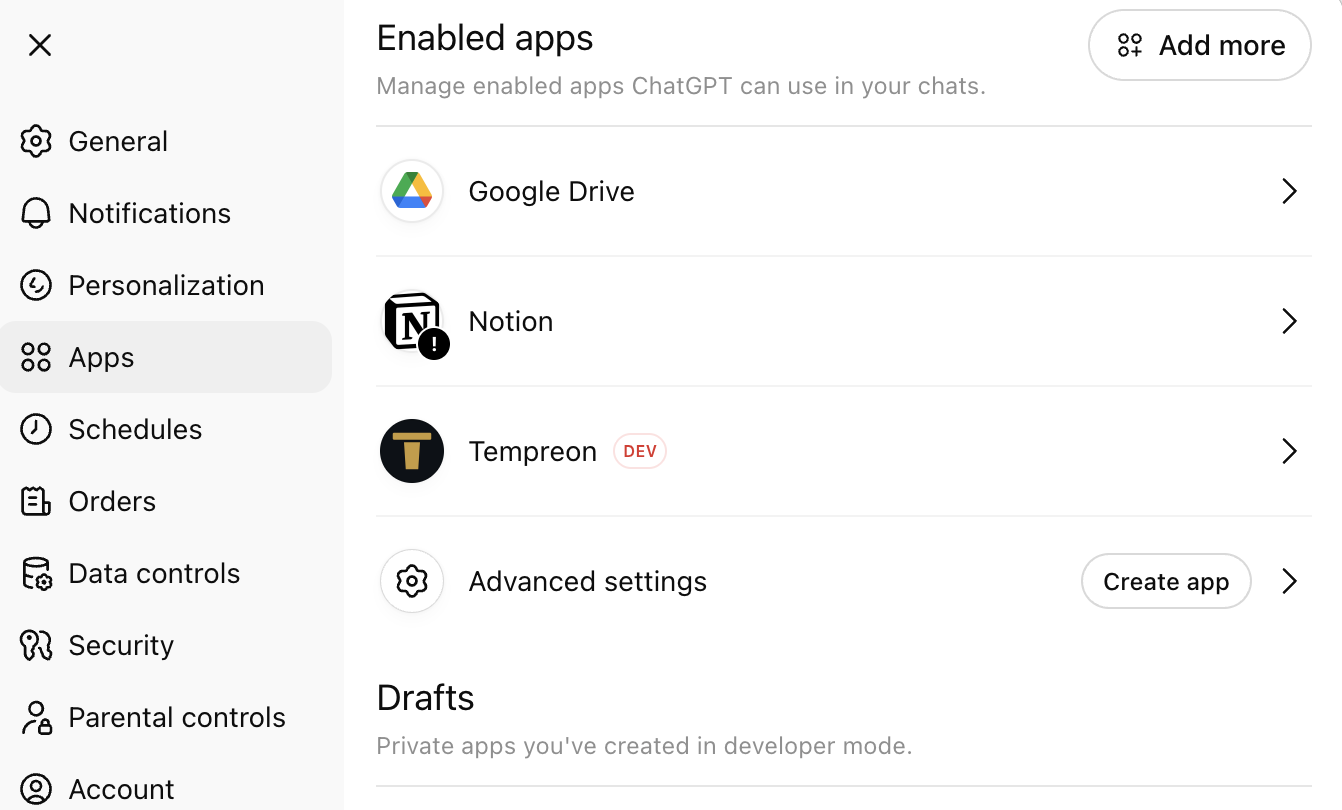
- Go to Settings > Apps > Advanced Settings
- Click Create App
3. Configure the App
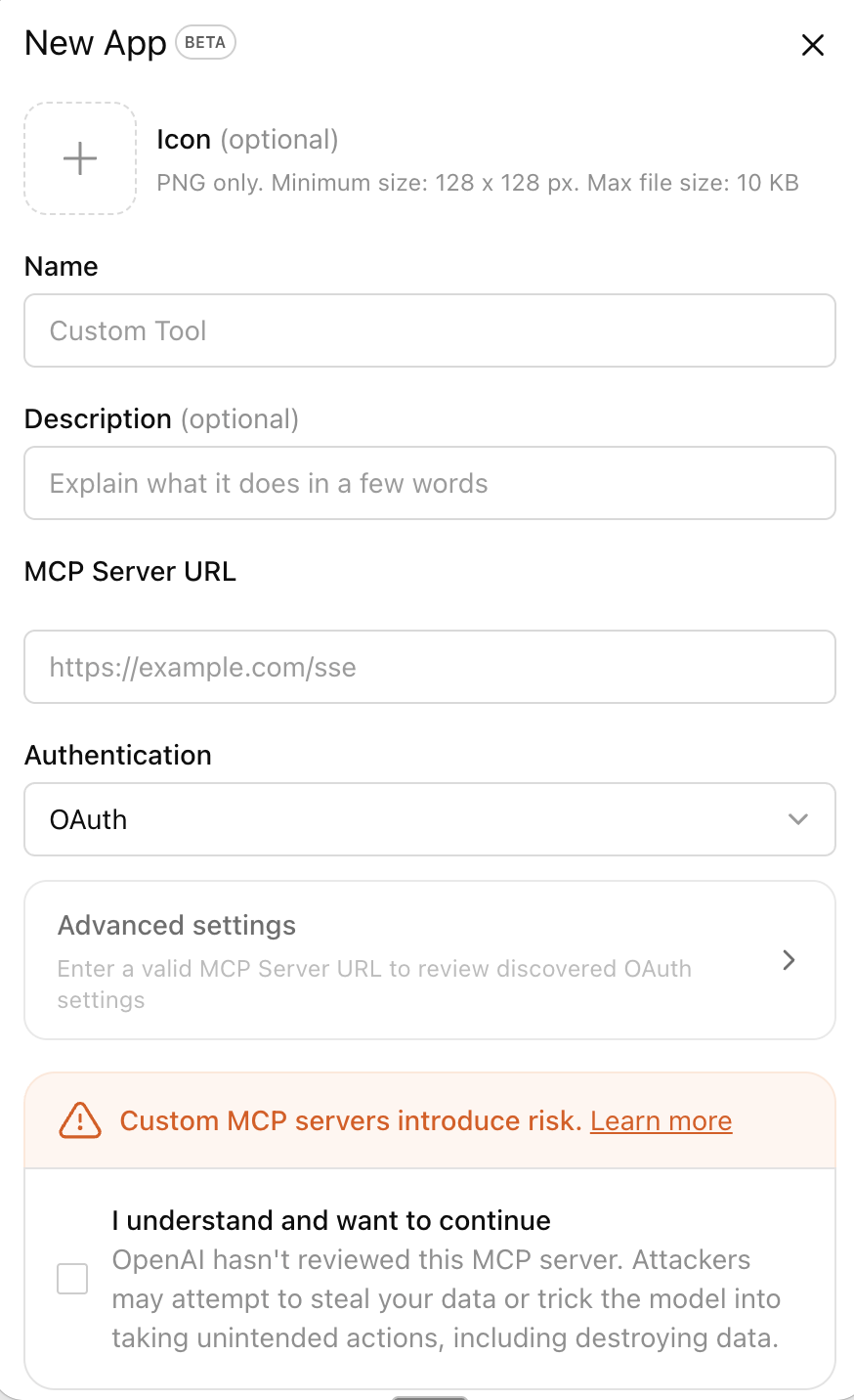
In the new app dialog, fill in:
- Icon — Upload the Tempreon icon (download here) to make it easy to spot
- Name — Enter
Tempreon(or whatever you'd like to call it) - Description — Optional (e.g., "My intelligence layer")
- MCP Server URL — Paste the URL from your Tempreon Bridges dashboard
- Authentication — Leave the default set to OAuth
- Check the "I understand" acknowledgment for custom MCP server risk
- Click Scan Tools — current versions scan the server's tool list before creation. With OAuth, complete the authorization prompt first, then let the scan finish
- Click Create — the app appears with a "Dev" label in your settings, and may also be listed under a Drafts tab in your app settings (workspace admins see it there until published)

4. Authorize the Connection
After creating the app:
- ChatGPT will prompt you to authenticate
- A browser window opens with the Tempreon authorization page
- Log in to your Tempreon account if prompted
- Review the permissions and click Approve
- You'll be redirected back to ChatGPT — the connection is now active
5. Enable in Your Chats
To use Tempreon in a conversation:
- Open a new chat
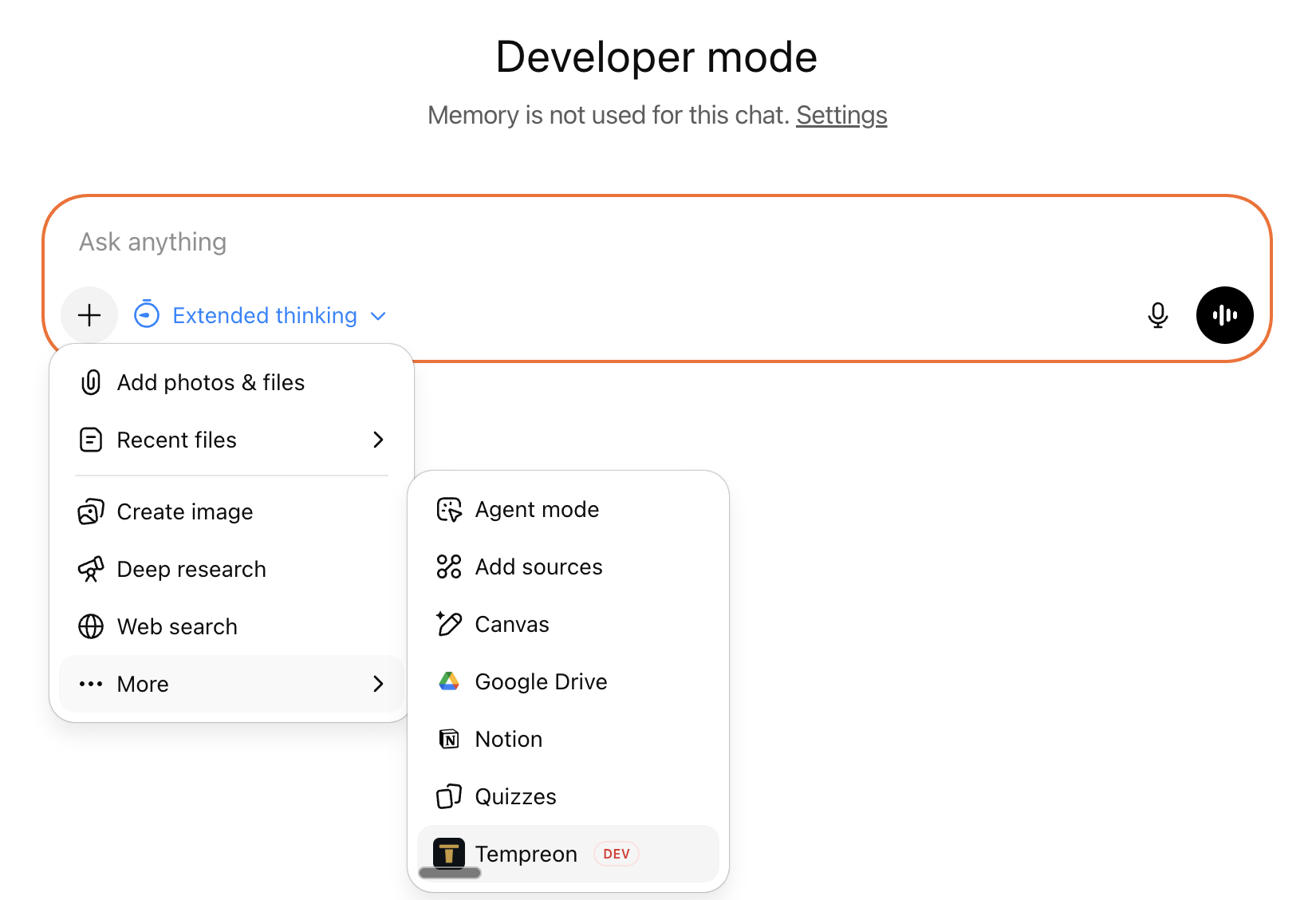
- Click the + button in the chat input area
- Click More
- Find your Tempreon app and select it
On current builds, the + menu may show Developer mode instead of More. Choose it, then select your Tempreon app.
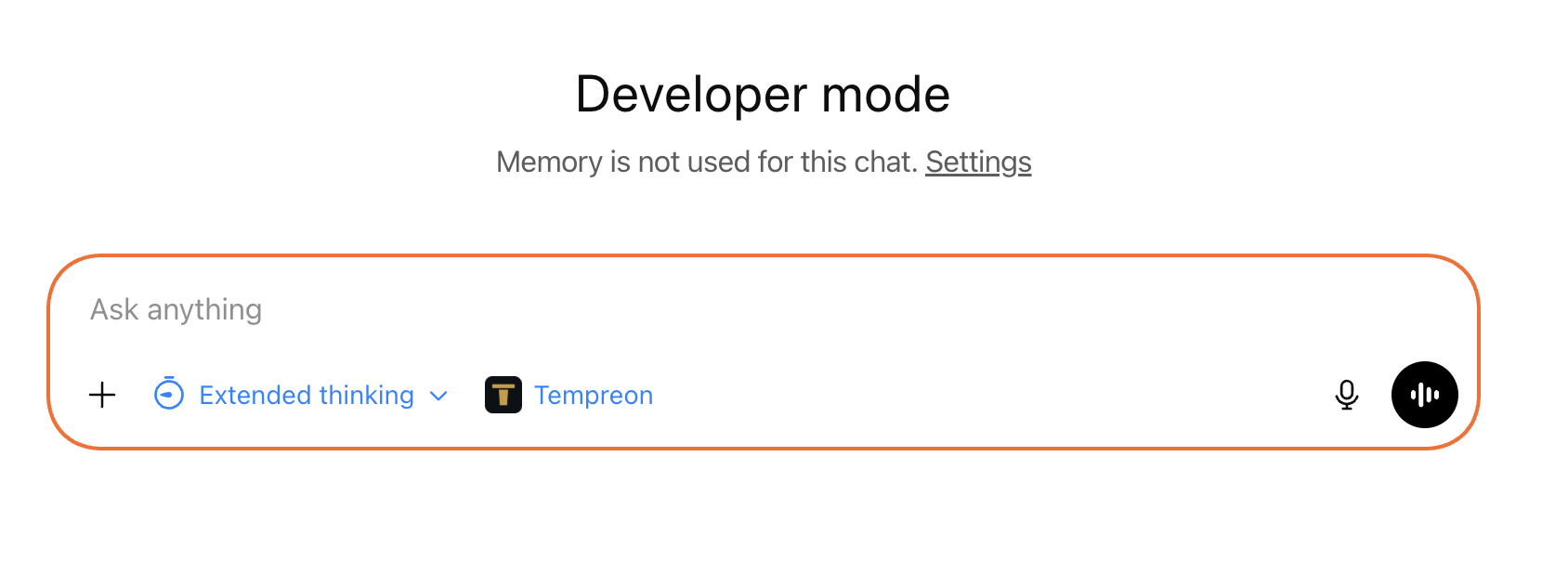
Tempreon will show as active in the chat. The orange Developer Mode border around the interface is normal.
6. Verify It's Working
Try saying:
- "What do you know about me from Tempreon?"
- "Search my knowledge base"
- "What Tempreon tools do you have access to?"
If ChatGPT responds with information from your Core Imprint or lists Tempreon tools, the Bridge is working.
Multi-Model Intelligence
One of the key advantages of using Tempreon with ChatGPT alongside Claude is true multi-LLM intelligence. Knowledge you store in a Claude session is immediately available in ChatGPT, and vice versa. Your intelligence layer follows you across providers — no manual syncing.
ChatGPT-Specific Notes
- Developer Mode border: The orange border around the ChatGPT interface while using custom MCP apps is normal and expected. It indicates Developer Mode is active.
- Session behavior: Selecting the app applies to the message you send with it. If a later message needs fresh data from Tempreon, @-mention the app by name again. To refresh context entirely, start a new chat.
- Atlas retirement: OpenAI announced on July 9, 2026 that it was retiring its Atlas browser, which was scheduled to stop working on August 9, 2026. If you had been reaching Tempreon through the Atlas sidebar, move to ChatGPT on the web — the app you created here works there with no changes.
- Feature parity: Tempreon's tools are all exposed through the ChatGPT Bridge — Core Imprint, Knowledge Vault, tasks, file storage, network intelligence, and learning. Write actions (saves) depend on your plan's MCP permissions, and ChatGPT asks you to confirm them by default; you can choose to remember your answer for the rest of that conversation.
Try Saying...
- "Remember that I prefer conservative financial projections in board presentations" — Stores a preference
- "What decisions have I made about the product roadmap?" — Searches your Knowledge Vault
- "Create a task to review the partnership proposal by Thursday" — Adds to your task queue
- "Start my session focused on the consulting project" — Loads domain-specific context
Common Issues
| Problem | Solution |
|---|---|
| Developer Mode toggle not visible | Requires a paid plan (Plus and up). On Business, Developer Mode is for admins and owners; on Enterprise/Edu, an admin grants access first. Make sure you're on ChatGPT web — custom apps aren't available on mobile |
| Saves don't run, lookups work | Often a plan-level write gate on OpenAI's side rather than a broken connection. OpenAI's help centre documents full MCP, including saves, for Business, Enterprise, and Edu, and read and fetch for Pro; its developer docs list Plus and Pro as eligible for full read and write. On Plus and Pro, treat saves as something to test rather than assume. ChatGPT also asks you to confirm write actions by default, so check for a pending confirmation, which is a separate cause worth ruling out |
| Tempreon missing in agent mode or deep research | OpenAI documents that agent mode won't use custom apps, and deep research can use them for read/fetch actions only — not writes. Use a normal chat for the full tool set |
| "Create App" not available | Ensure Developer Mode is toggled on in Advanced Settings |
| Authorization doesn't complete | Try clearing browser cache and re-attempting |
| App not showing in chat menu | Click + > More, or + > Developer mode on current builds, to find it |
| Context doesn't load | Start a new conversation with the app enabled |
For more help, see Troubleshooting Connections.
Frequently asked questions
- Why can't I find Developer Mode in ChatGPT?
- Developer Mode lives under Settings → Apps → Advanced Settings, and it needs a paid plan — Plus, Pro, Business, Enterprise, or Edu (not Free). It's also web only, so you won't see it in the ChatGPT mobile apps. On Business, developer mode is for workspace admins and owners, and each admin turns it on for themselves. On Enterprise or Edu, an admin first grants access under Workspace Settings → Permissions & Roles → Connected Data, and then the toggle appears for you.
- Tempreon's lookups work in ChatGPT but saves don't. Why?
- That is usually ChatGPT's plan-level write gate. OpenAI's help centre documents full MCP support, including tools that save and update, for Business, Enterprise, and Edu workspaces, while its developer docs list Plus and Pro as eligible for full read and write. On Plus and Pro, lookups are the dependable part, and saves are worth testing. ChatGPT also asks you to confirm write actions by default, so check for a pending confirmation.
- Is the orange border around ChatGPT a problem?
- No. The orange border just means Developer Mode is active, which is required for custom MCP apps like Tempreon. It isn't a jailbreak or a warning, and it's expected while you have a custom app connected.