Managing Your Connections
Monitor, manage, and get the most out of your Bridges and Engines.
Ready to connect? Your Bridges page walks you through it step by step.
Open your Bridges pageYour Bridges Dashboard
The Bridges section of your Tempreon dashboard gives you visibility into all your active connections.
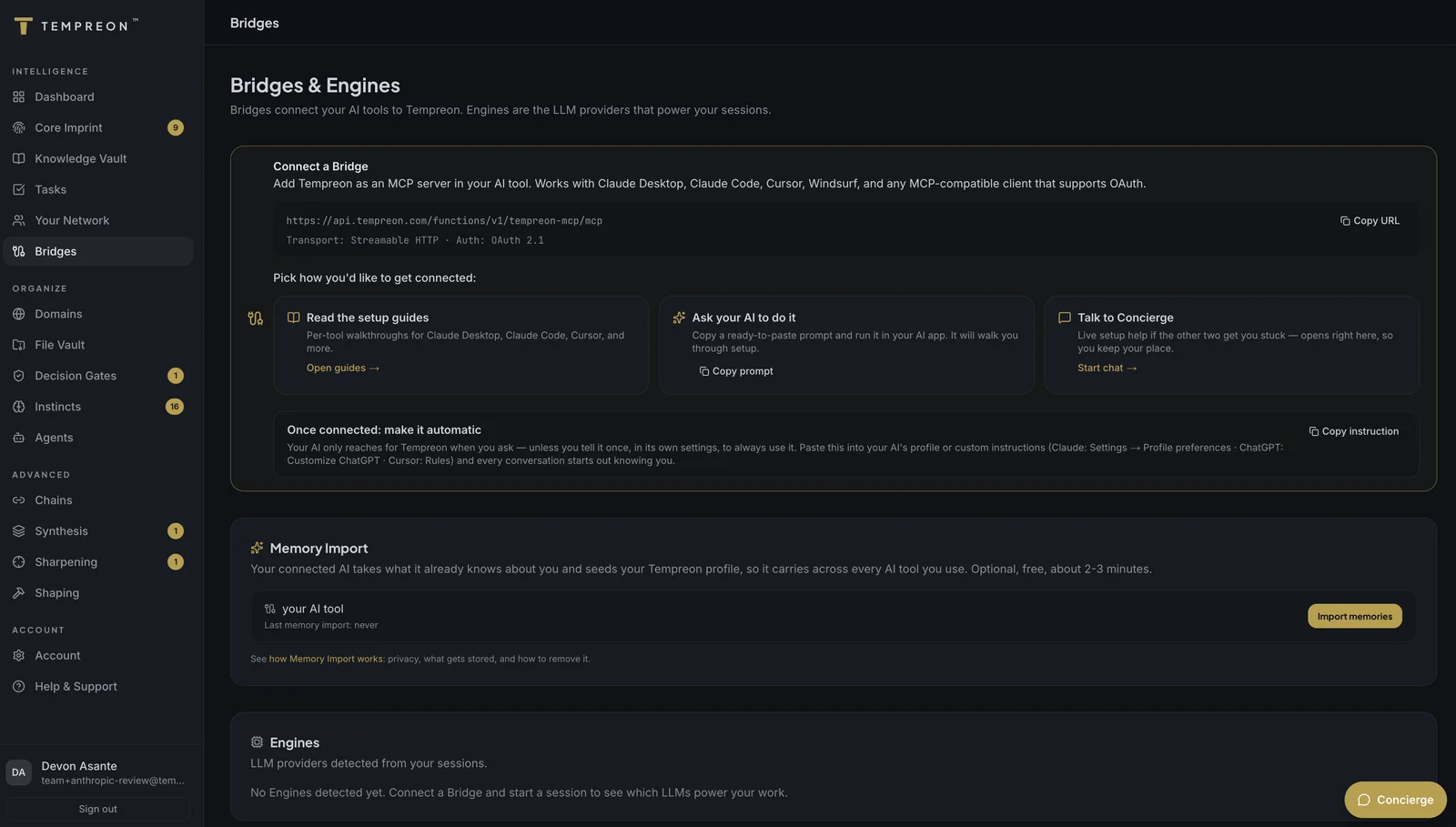
What You'll See
Engines
Every AI model that connects through a Bridge is tracked as an Engine. You'll see which AI providers and models have been used — for example, Claude Opus, Claude Sonnet, or GPT-4o. This happens automatically; there's nothing to configure.
Recent Sessions
Each time an AI tool connects through a Bridge, it registers as a session. The dashboard shows:
- When the session happened (relative timestamp)
- Which engine was used
- How many tools were called during the session
This gives you a clear picture of how actively your intelligence layer is being used.
Adding More Bridges
To connect an additional AI tool:
- Follow the setup guide for your tool (Claude Desktop, Claude Code, Cursor)
- Use the connection details from your Bridges dashboard
- Authorize the new connection
Each Bridge uses one slot from your tier's allocation. Check your current usage in the Bridges dashboard.
Understanding Bridge Limits
| Tier | Bridges | Best For |
|---|---|---|
| Free | 1 | Getting started with one primary tool |
| Standard | 5 | Using AI across multiple tools and contexts |
| Premium | Unlimited | Power users with many tools and workflows |
| Enterprise | Unlimited | Teams and organizations |
If you need more Bridges than your current tier allows, consider upgrading from your Settings page.
Using Multiple Bridges Effectively
When you have more than one Bridge connected, all your tools share the same intelligence:
- Knowledge syncs automatically. Something you store in a Claude Code session is immediately available in Cursor.
- Instincts apply everywhere. A communication preference learned in Claude Desktop affects outputs in all connected tools.
- Context is scoped by Domain. If you use Domains to organize your work, the right context loads based on what you're working on.
Use Case: Multi-Tool Workflow
James is a technical founder. He uses Claude Code for development, Cursor for pair programming, and Claude Desktop for investor communications. All three connect to Tempreon. When he makes an architecture decision in Claude Code, it's available when Cursor's AI helps him implement it. When he switches to Claude Desktop to draft an investor update, the same technical context informs the narrative — but the communication style shifts to match his "investor communications" Domain.
Revoking a Connection
To stop an AI app from reaching your memory, open Account → Connected apps in your dashboard and select Revoke next to the app. Every app you have authorized is listed there with when it was first connected and when it last used its access.
A revoke takes effect right away for new access: the app can no longer renew its access. Access it already holds stops working within an hour.
Removing Tempreon inside the AI app (for example deleting the connector in Claude or ChatGPT) stops that app from using Tempreon only if the app discards the access it was given. Tempreon cannot see whether it did, so revoke the app in Connected apps as well if you want to be sure.
No data is lost when you revoke an app. Your intelligence remains intact in Tempreon, and you can connect the app again at any time.
Try Saying...
- "How many sessions have I had this week?" — Your AI can reference session data
- "Which tools am I connected to through Tempreon?" — See your active Bridges
- "Start my session focused on the marketing project" — Load domain-specific context